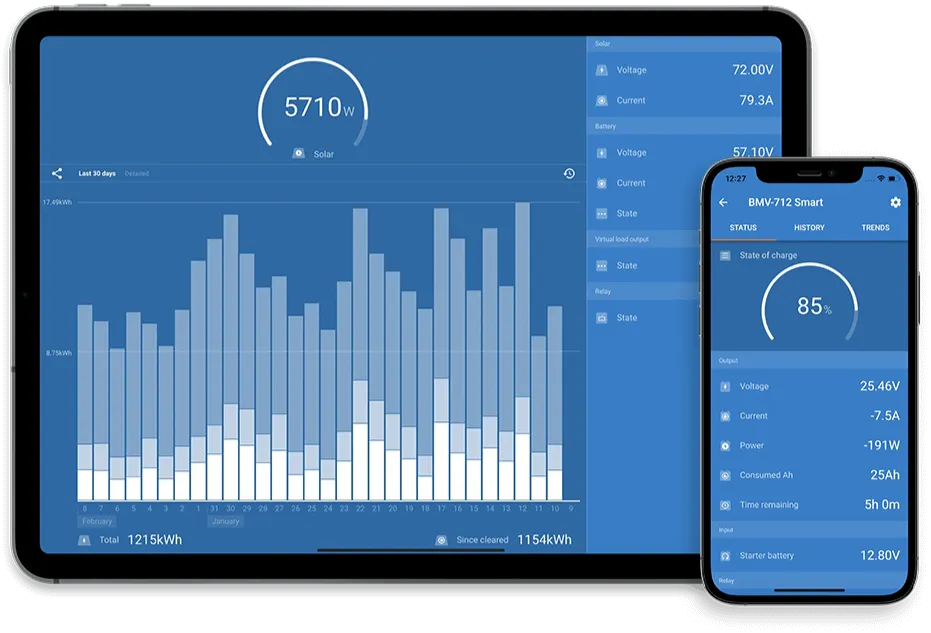
Victron Wi-Fi Reconnect
Depending on your setup, you can reconnect using the physical screen on your system or the VictronConnect app on your phone.
Using the Touch Screen (Cerbo GX / Color Control)
Depending on your setup, you can reconnect using the physical screen on your system or the VictronConnect app on your phone.
1. Open the Main Menu
Tap the screen once to activate it, then press the Menu button.
2. Go to Settings
Scroll down the list and select Settings.
3. Open Wi-Fi Settings
Scroll until you find Wi-Fi and tap it.
4. View Networks
Select Wi-Fi networks. The system will scan for nearby signals.
5. Select Your Network
Tap your home Wi-Fi name from the list.
6. Enter Password
Carefully type your password (it is case-sensitive). Tap the checkmark when finished.
7. Confirm you are connected.
Once connected, the screen will display the network name and signal strength.
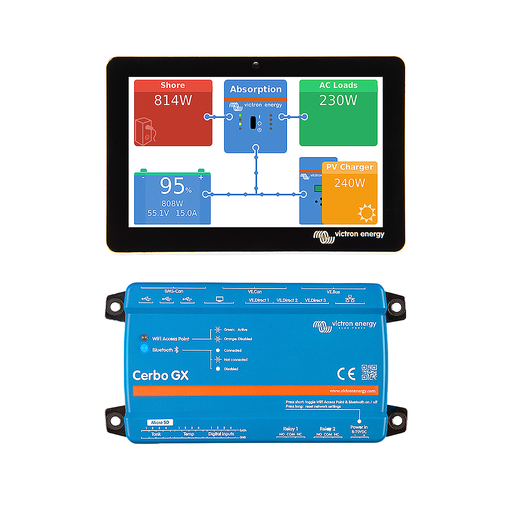
Using the VictronConnect App
Use these steps if you do not have a screen or prefer using your phone/tablet.
1. Open VictronConnect
Ensure Bluetooth is enabled on your phone and stand near your Cerbo GX/system.
2. Select Your Device
Find your Cerbo GX (or relevant GX device) in the device list and tap to connect.
3. Enter Settings
Tap the cog icon in the top right corner.
4. Navigate to Networking
Tap on Network from the settings menu.
5. Select Wi-Fi
Ensure the “WiFi” toggle is ON, then tap on Wi-Fi networks.
6. Connect
Find your home Wi-Fi in the “Discovered networks” list.
6. Enter Password
Type in your Wi-Fi password and tap OK/Connect.
7. Confirm you are connected.
The app will show “Connected” once the link is established.